
CP210x USB Driver Download
Download Driver
Download CP210x USB Driver DownloadFile: CP210x-driver.zip
Compatible Chips: CP2102 / CP2104
Quick Overview
The CP210x USB to UART Bridge driver supports CP2102, CP2104, and other CP210x series chips manufactured by Silicon Labs. These chips are extremely popular in ESP32 and ESP8266 development boards due to their excellent performance, reliability, and low power consumption.
Common Uses:
- ESP32 development boards with CP2102 USB-to-UART bridge
- ESP8266 NodeMCU boards with CP2102
- Arduino-compatible boards with CP2104
- Industrial automation and IoT devices
- USB serial adapters and converters
COMPATIBLE PRODUCTS
The following DIYables products use the CP2102/CP2104 chip and require this driver:
- DIYables ESP32 Development Board with CP2102
- DIYables ESP8266 Development Board with CP2102
- Add your CP210x based products here
DRIVER INSTALLATION
Normally, the driver for this board is automatically supported by the Arduino IDE. However, in some cases, the Arduino IDE may not recognize the board properly. If that happens, please follow the instructions below to install the driver manually.
- Download the Driver: Download the CP210x driver from the following links:
- After downloading, unzip the contents of the file to a folder on your computer. There is no installation executable in the package.
- Open Device Manager
- Press Windows + X and select Device Manager, or search for "Device Manager" in the Start menu.
- Locate the device under Ports (COM & LPT), You will see a port usually listed as USB Serial Port or similar as below image.
- Connect the Board
- Connect your board to the computer using a USB cable.
- Watch the Ports (COM & LPT) section in Device Manager to see which new serial port appears when the board is connected. This is your device.
- Update the Driver
- Right-click on the detected serial device (e.g., "USB Serial Port") and choose Update driver, like the below image:
- In the window that appears, select Browse my computer for drivers.
- Select the Unzipped Folder
- Click Browse, then navigate to the folder where you unzipped the driver.
- Click Next and follow the prompts to complete the installation.
- Finish
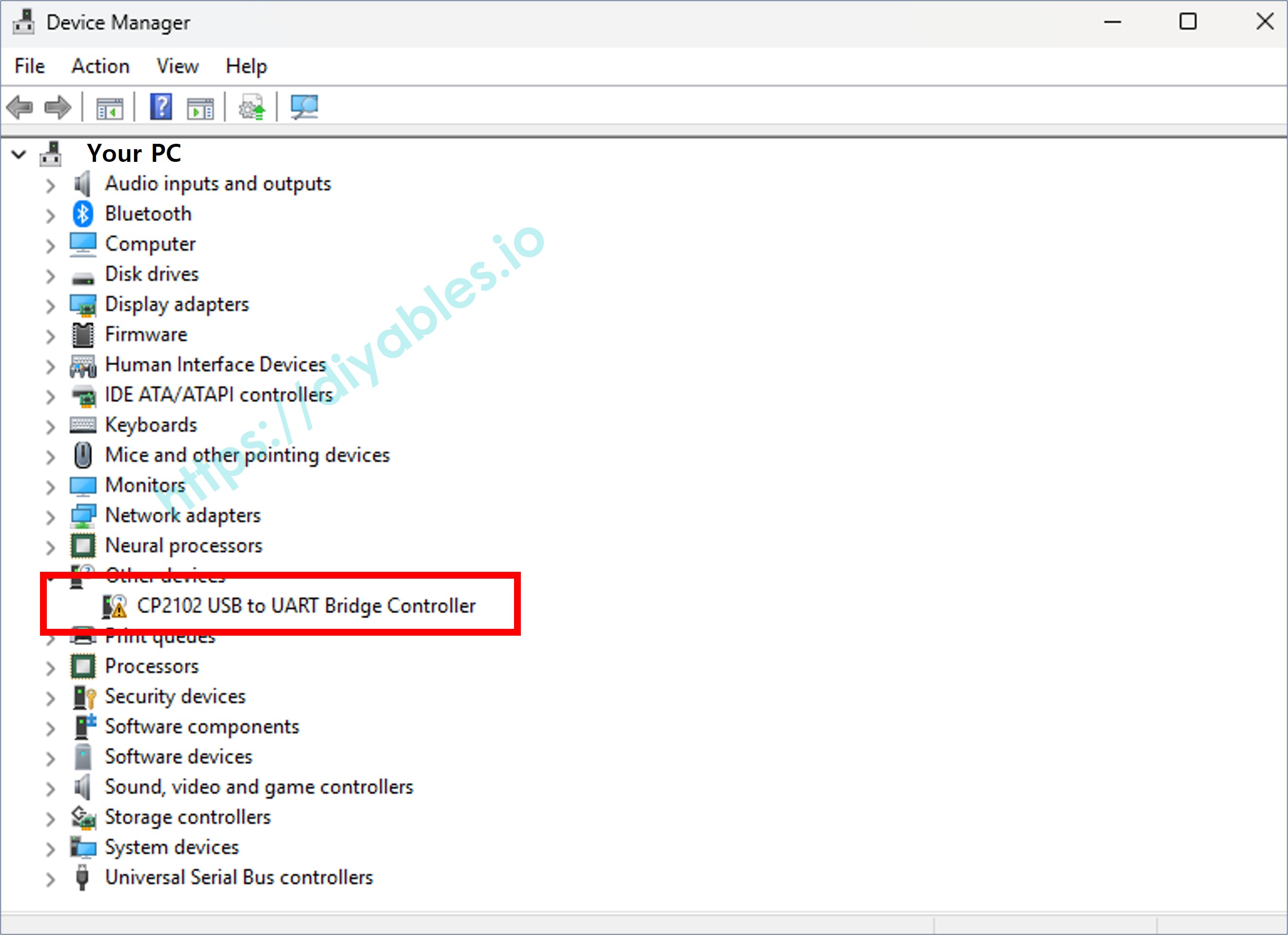
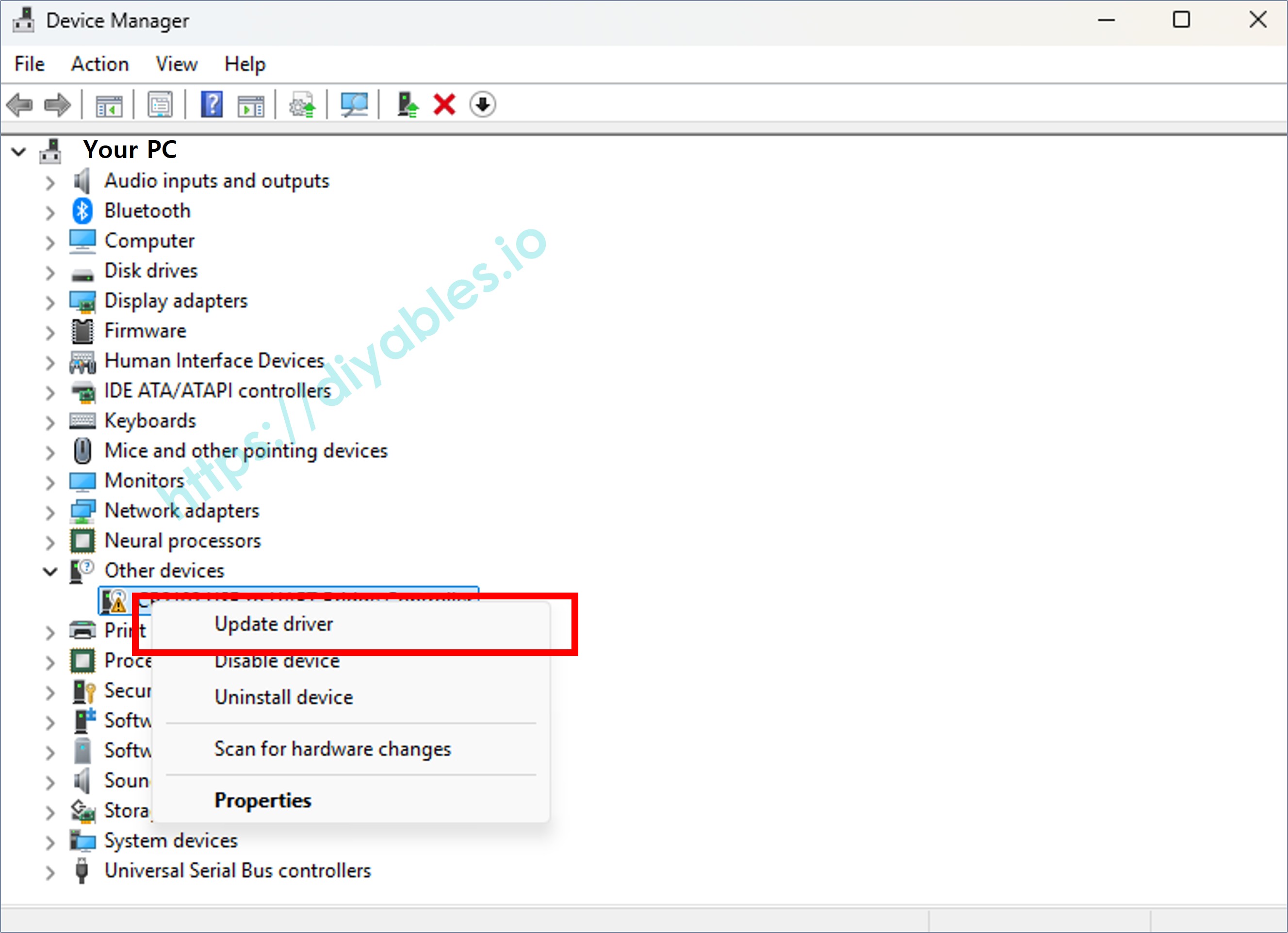
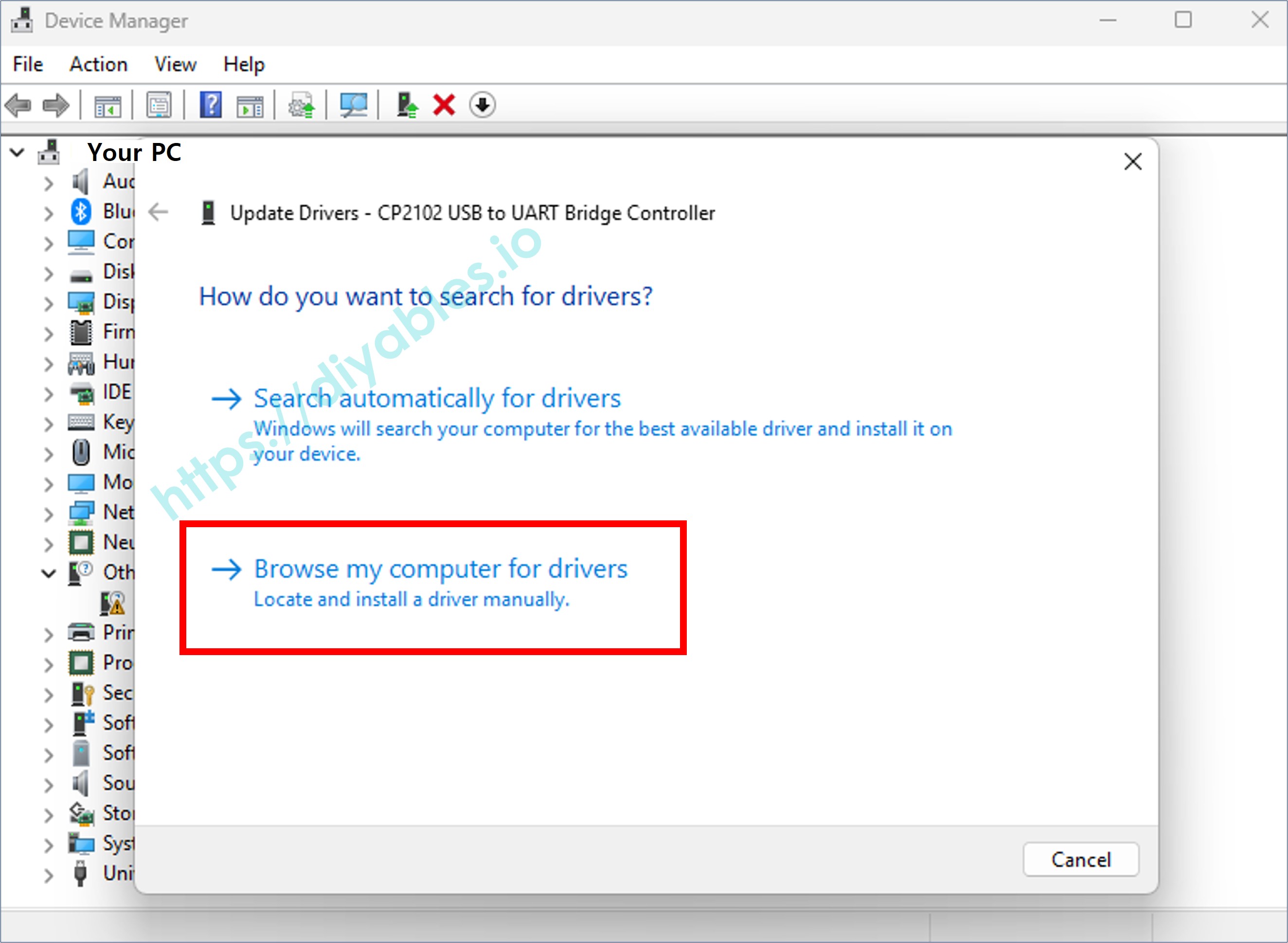
Once the driver is installed, the device should appear correctly under Ports (COM & LPT) in Device Manager. It looks like below images:
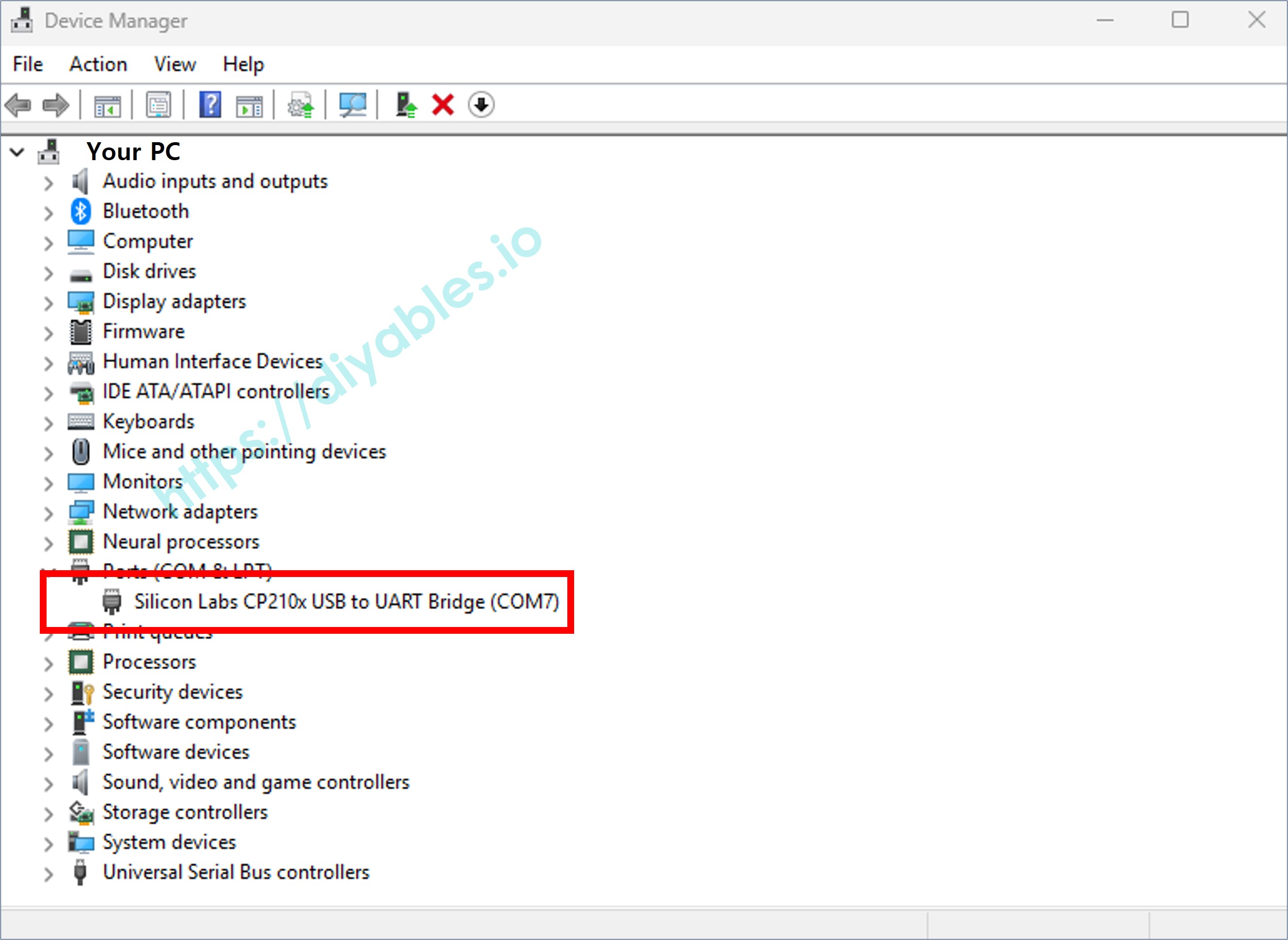
Note that if it does not work, you may need to uninstall the existing driver for that COM port before installing new driver as the instruction above.
TROUBLESHOOTING
Driver Installation Issues
Problem: Driver installation fails on Windows
- Ensure you're running the installer as administrator
- Temporarily disable antivirus or Windows Defender
- Uninstall any previous CP210x drivers using Device Manager
- Download the latest driver version from Silicon Labs website
Problem: "System Extension Blocked" on Mac
- Go to System Preferences → Security & Privacy
- Click the lock icon and enter your password
- Click "Allow" next to the Silicon Labs system extension message
- Restart your Mac
- Reinstall the driver if necessary
Device Not Recognized
Problem: Board not showing up in Device Manager (Windows)
- Try a different high-quality USB cable with data lines
- Try a different USB port (preferably USB 2.0 port)
- Check if the board power LED is lit
- Restart your computer
- Verify the driver is installed correctly
- Update Windows to the latest version
Problem: No /dev/ttyUSB* device on Linux
- Check kernel messages: dmesg | tail -30
- Verify CP210x module is loaded: lsmod | grep cp210x
- Check USB connection: lsusb (should show Silicon Labs device)
- Install missing kernel modules if needed
COM Port Issues
Problem: COM port not showing in Arduino IDE or other serial tools
- Close and reopen the application
- Refresh the port list (Tools → Port in Arduino IDE)
- Verify driver installation in Device Manager
- Check for driver conflicts with other USB serial devices
- Try connecting the board to a different USB port
Problem: Permission denied error on Linux
- Add your user to dialout group: sudo usermod -a -G dialout $USER
- Log out completely and log back in
- Check group membership: groups (should include dialout)
- Alternative: sudo chmod 666 /dev/ttyUSB0 (temporary fix)
Communication Issues
Problem: Can't upload sketches or communicate with board
- Verify correct COM port is selected
- Verify correct board type is selected in Arduino IDE
- Try lowering the baud rate or upload speed
- Check for proper serial terminal settings (8N1 is typical)
- Ensure no other application is using the COM port
- Try pressing the reset button on your board
Problem: Random disconnections or unstable connection
- Use a high-quality USB cable (preferably short, under 1 meter)
- Avoid USB hubs; connect directly to computer
- Check for electromagnetic interference
- Update your motherboard USB drivers
- Try a different USB port
TECHNICAL SPECIFICATIONS
Supported Chips:
- CP2101, CP2102, CP2102N
- CP2103, CP2104, CP2105
- CP2108, CP2109
- And other CP210x variants
Supported Operating Systems:
- Windows 11, 10, 8.1, 8, 7, Vista, XP (32-bit and 64-bit)
- Windows Server 2019, 2016, 2012, 2008
- MacOS 10.6 and later (including macOS Sonoma)
- Linux kernel 3.x and later
- Android (with OTG support)
Interface:
- USB 2.0 Full Speed (12 Mbps)
- UART interface with hardware or software flow control
Baud Rates Supported:
- 300 bps to 1 Mbps (CP2102/CP2103)
- 300 bps to 2 Mbps (CP2104)
- Up to 3 Mbps (CP2102N)
Data Formats:
- Data bits: 5, 6, 7, 8
- Stop bits: 1, 1.5, 2
- Parity: None, Odd, Even, Mark, Space
FREQUENTLY ASKED QUESTIONS
Q: Do I need to install this driver?
A: Windows 10/11 and modern Linux distributions usually include this driver by default. Mac users typically need to install it. Only install if your board is not recognized.
Q: Is this the official Silicon Labs driver?
A: Yes, download the official driver from Silicon Labs or trusted sources like DIYables.
Q: Why does my ESP32/ESP8266 board need this driver?
A: The CP2102/CP2104 chip provides the USB-to-Serial conversion needed for programming and serial communication with the ESP32/ESP8266 microcontroller.
Q: Can I use the same driver for ESP32 and ESP8266?
A: Yes, if both boards use CP210x chips, the same driver works for both.
Q: What's the difference between CP2102 and CP2104?
A: CP2104 supports higher baud rates (up to 2 Mbps) and has more GPIO pins. Both work with the same driver.
Q: Will this work with Arduino IDE, PlatformIO, and MicroPython?
A: Yes, the driver provides a COM port that works with all development environments and tools.
Q: My board was working, but now it's not recognized. What happened?
A: Try reinstalling the driver, checking your USB cable, trying a different port, or updating your operating system.
ADDITIONAL RESOURCES
Official Silicon Labs Resources:
- Official documentation and application notes
Development Tools:
- Arduino IDE: arduino.cc
- PlatformIO: platformio.org
- ESP-IDF: docs.espressif.com
Support:
- For technical support, contact us at support@diyables.io
- Include your operating system, board model, and driver version