
CH341SER USB Driver Download
Download Driver
Download CH341SER USB Driver DownloadFile: CH341SER.zip
Compatible Chips: CH340 / CH341
Quick Overview
The CH341SER driver supports CH340 and CH341 USB to Serial converter chips manufactured by WCH (Jiangsu Qinheng Co., Ltd). These chips are widely used in affordable Arduino-compatible boards and many Chinese-made development boards due to their low cost and reliability.
Common Uses:
- Arduino Uno compatible boards with CH340G chip
- Arduino Nano clones with CH340 chip
- ESP32 development boards with CH340 USB-to-Serial converter
- ESP8266 NodeMCU boards with CH340
- Various DIY electronics projects and prototyping boards
COMPATIBLE PRODUCTS
The following DIYables products use the CH340/CH341 chip and require this driver:
- Add your CH340/CH341 based products here
DRIVER INSTALLATION
Normally, the driver for this board is automatically supported by the Arduino IDE. However, in some cases, the Arduino IDE may not recognize the board properly. If that happens, please follow the instructions below to install the driver manually.
- Download the Driver: Download the CH341SER driver from the following links:
- After downloading, unzip the contents of the file to a folder on your computer. There is no installation executable in the package.
- Open Device Manager
- Press Windows + X and select Device Manager, or search for "Device Manager" in the Start menu.
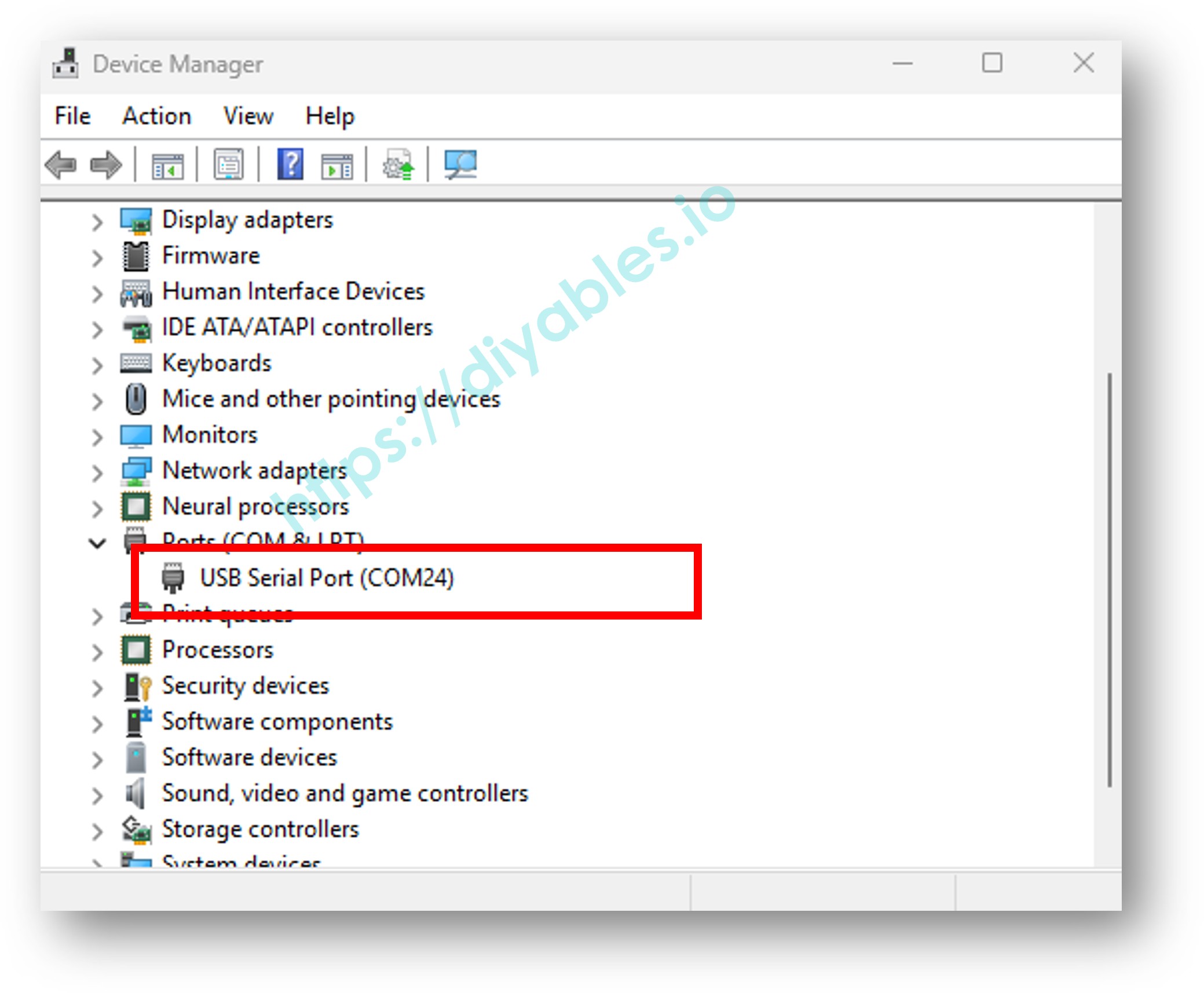
- Locate the device under Ports (COM & LPT), You will see a port usually listed as USB Serial Port or similar as below image.
- Connect the Board
- Connect your board to the computer using a USB cable.
- Watch the Ports (COM & LPT) section in Device Manager to see which new serial port appears when the board is connected. This is your device.
- Update the Driver
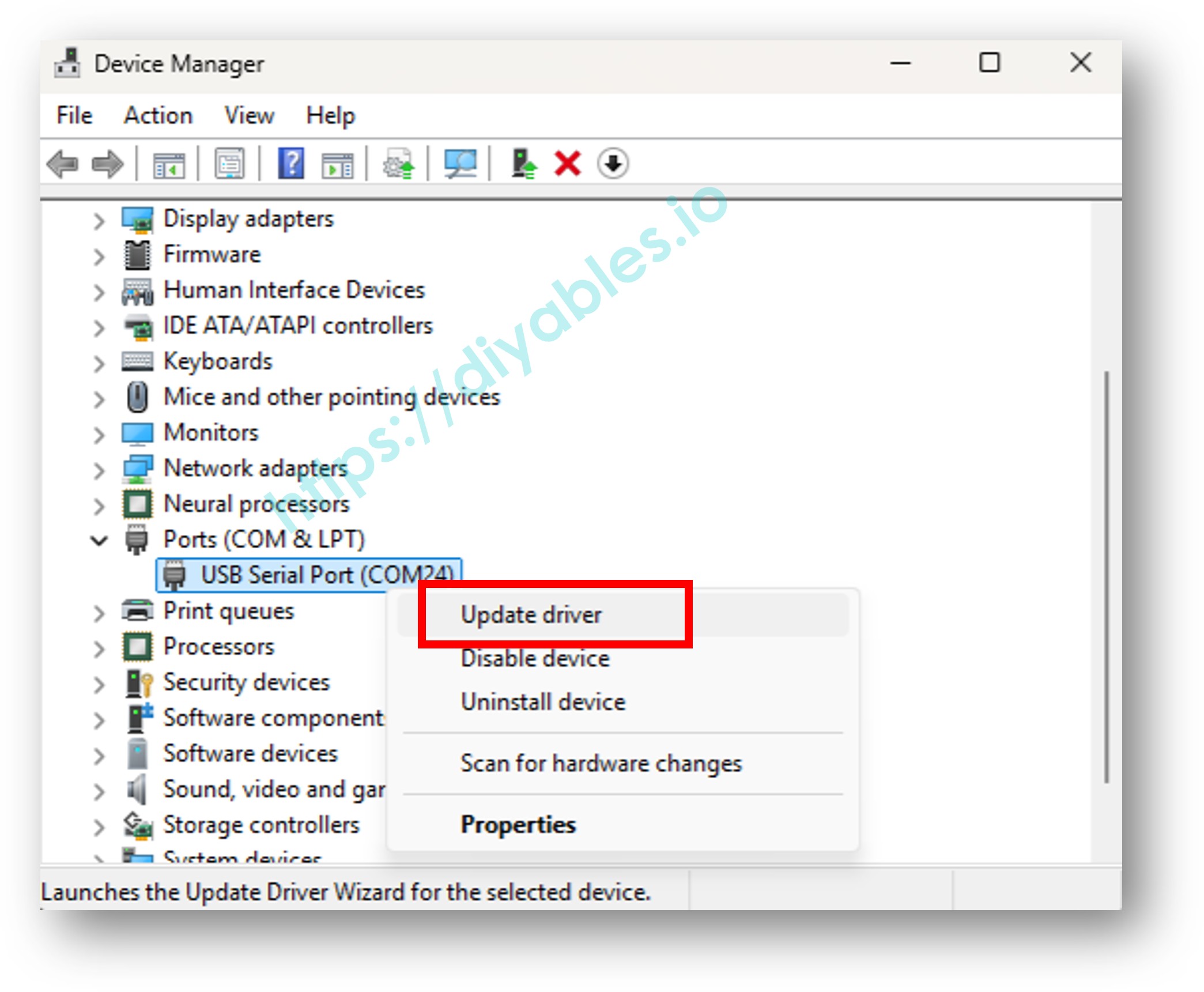
- Right-click on the detected serial device (e.g., "USB Serial Port") and choose Update driver, like the below image:
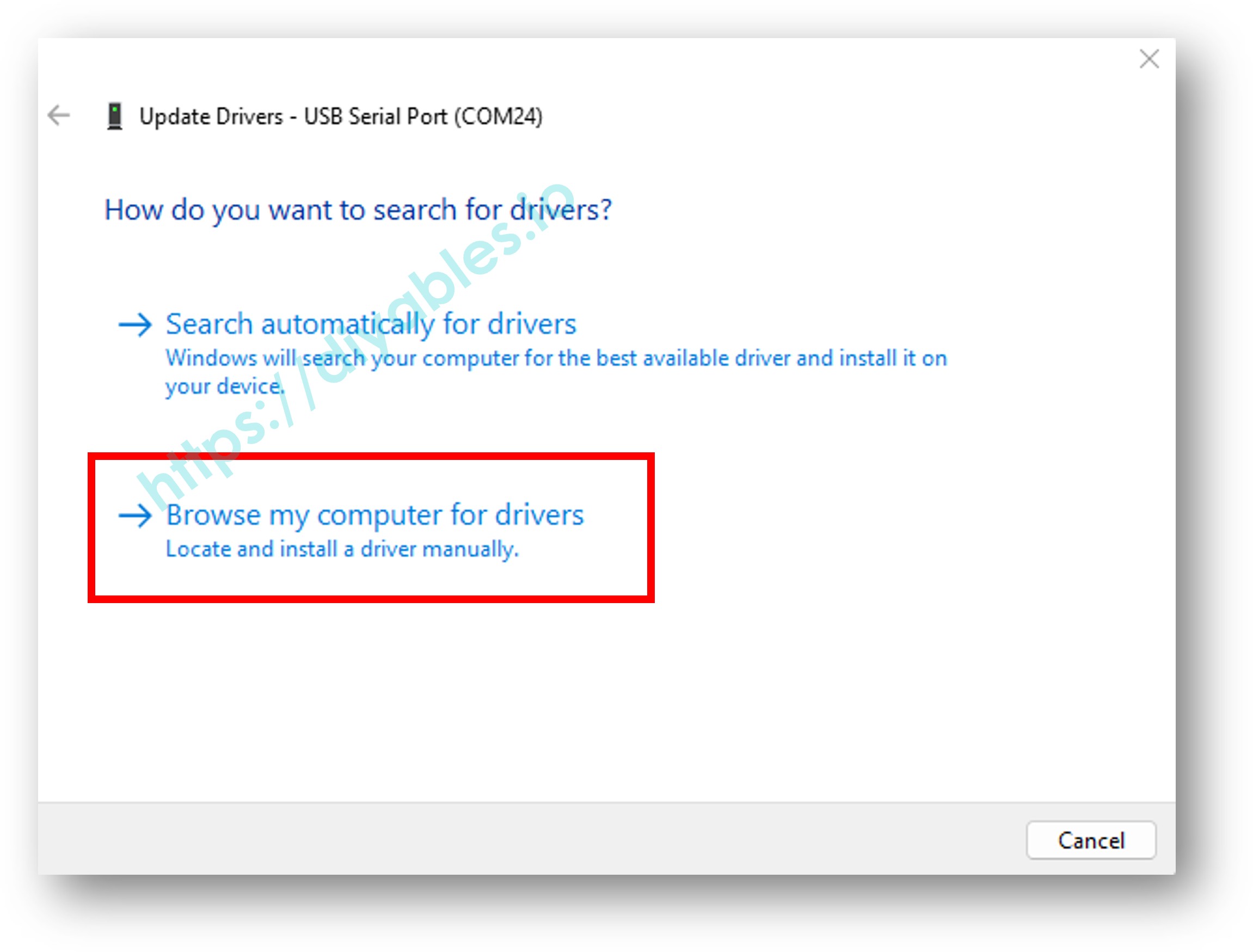
- In the window that appears, select Browse my computer for drivers.
- Select the Unzipped Folder
- Click Browse, then navigate to the folder where you unzipped the driver.
- Click Next and follow the prompts to complete the installation.
- Finish
Once the driver is installed, the device should appear correctly under Ports (COM & LPT) in Device Manager. It looks like below images:
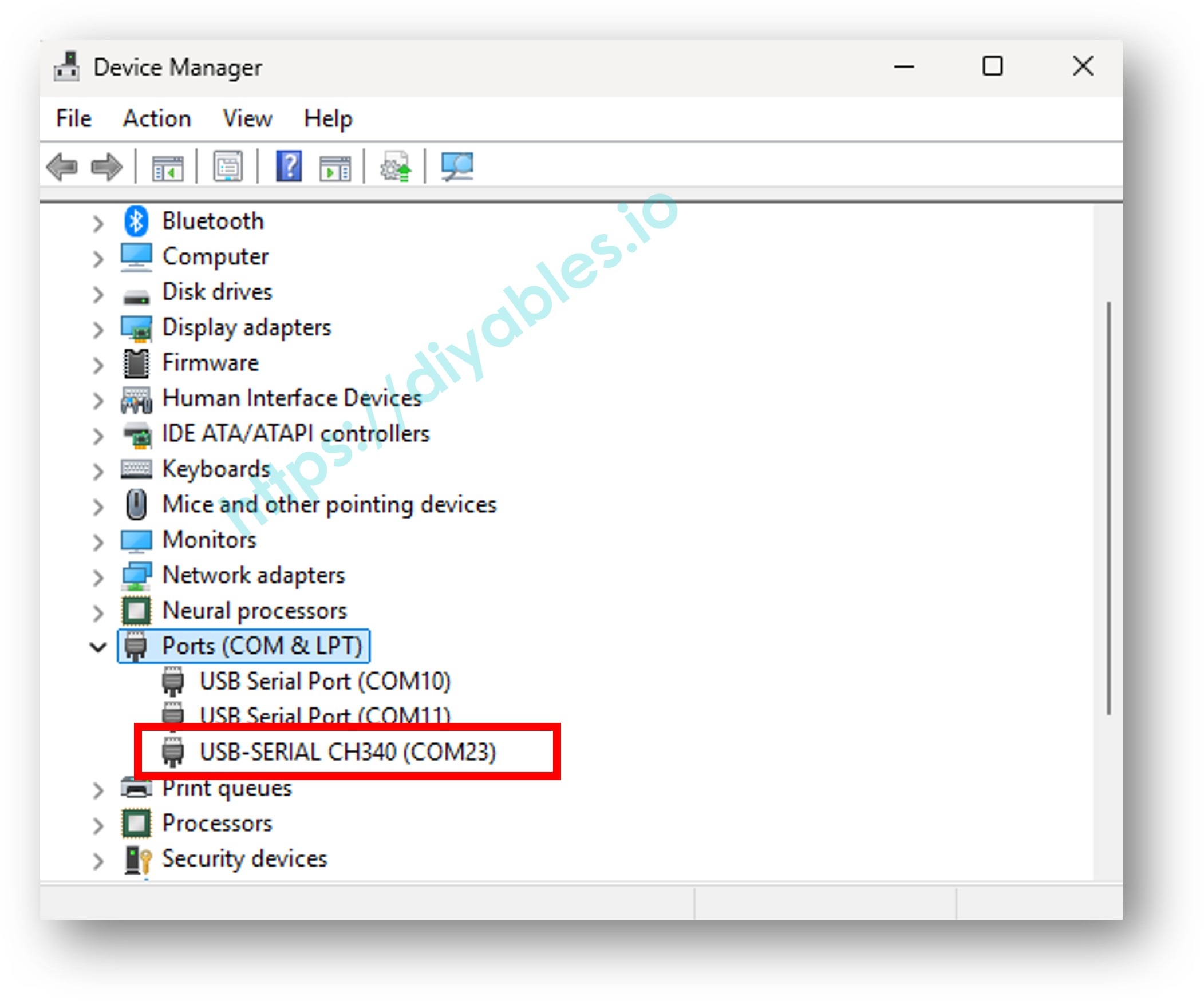
Note that if it does not work, you may need to uninstall the existing driver for that COM port before installing new driver as the instruction above.
TROUBLESHOOTING
Driver Installation Issues
Problem: Driver installation fails on Windows
- Run the installer as administrator
- Temporarily disable antivirus software
- Uninstall any previous CH340/CH341 drivers first
- Make sure you have administrator privileges
Problem: "System Extension Blocked" on Mac
- Go to System Preferences → Security & Privacy
- Click the lock icon to make changes
- Click "Allow" next to the blocked system extension message
- Restart your Mac
Device Not Recognized
Problem: Board not showing up in Device Manager (Windows)
- Try a different USB cable (some cables are charging-only without data lines)
- Try a different USB port on your computer
- Check if the board has a power LED indicator (should be lit)
- Restart your computer
- Reinstall the driver
Problem: No /dev/ttyUSB* device on Linux
- Check dmesg output: dmesg | tail -20
- Verify the CH341 module is loaded: lsmod | grep ch34
- Try unplugging and replugging the USB cable
- Check USB cable quality
COM Port Issues
Problem: COM port not showing in Arduino IDE
- Close and reopen Arduino IDE
- Click Tools → Port to refresh the port list
- Verify the driver is installed correctly in Device Manager
- Try resetting the board by pressing the reset button
Problem: Permission denied error on Linux
- Add your user to the dialout group: sudo usermod -a -G dialout $USER
- Log out and log back in
- Alternatively, use sudo: sudo arduino (not recommended)
Upload Issues
Problem: Failed to upload sketch to board
- Make sure you selected the correct COM port in Arduino IDE
- Make sure you selected the correct board type
- Try lowering the upload speed (Tools → Upload Speed → 57600)
- Press and hold the reset button, click upload, release reset after upload starts
- Check your USB cable quality
TECHNICAL SPECIFICATIONS
Supported Chips:
- CH340G, CH340C, CH340K, CH340E, CH340B, CH340T
- CH341A, CH341T
Supported Operating Systems:
- Windows 11, 10, 8.1, 8, 7, Vista, XP (32-bit and 64-bit)
- MacOS 10.9 and later (including macOS Monterey, Ventura, Sonoma)
- Linux kernel 2.6.24 and later
Interface:
- USB 2.0 Full Speed (12 Mbps)
- Serial UART interface
Baud Rates Supported:
- 50 bps to 2 Mbps
FREQUENTLY ASKED QUESTIONS
Q: Do I need to install this driver?
A: Most modern operating systems (Windows 10/11, macOS, Linux) include generic USB serial drivers that may work. Only install this driver if your board is not recognized by your computer.
Q: Is this driver safe?
A: Yes, this is the official driver from WCH, the manufacturer of the CH340/CH341 chips. Always download from official sources or trusted websites.
Q: Can I use the same driver for all CH340/CH341 variants?
A: Yes, the CH341SER driver supports all variants including CH340G, CH340C, CH340K, CH341A, etc.
Q: Why does my board show up as CH340 instead of Arduino?
A: This is normal for Arduino-compatible boards that use the CH340 chip instead of the official ATMEGA16U2 or FT232 chip. The board will function the same way.
Q: Will this driver work with ESP32 or ESP8266 boards?
A: Yes, if your ESP32 or ESP8266 board uses a CH340 or CH341 chip for USB-to-Serial conversion. Check your board specifications.
ADDITIONAL RESOURCES
Official WCH Website:
- Official driver downloads and documentation
Arduino IDE:
- Make sure you have the latest version of Arduino IDE installed
- Download from arduino.cc
Support:
- For technical support, contact us at support@diyables.io
- Include your operating system version and board model