
FT232 USB Driver Download
Quick Overview
The FT232 driver supports FT232RL, FT232BL, and other FT232 series chips manufactured by FTDI (Future Technology Devices International). These chips are known for their excellent reliability, comprehensive driver support, and are widely used in professional and hobbyist electronics projects.
Common Uses:
- Arduino Nano compatible boards with FT232RL chip
- Arduino Pro Mini programming adapters
- USB-to-Serial converters and adapters
- Industrial equipment and instrumentation
- Embedded systems development boards
- JTAG and SPI programming tools
COMPATIBLE PRODUCTS
The following DIYables products use the FT232 chip and require this driver:
- DIYables Arduino Nano Compatible Board with FT232RL
- DIYables USB to Serial Adapter with FT232
- Add your FT232 based products here
DRIVER INSTALLATION
Normally, the driver for this board is automatically supported by the Arduino IDE. However, in some cases, the Arduino IDE may not recognize the board properly. If that happens, please follow the instructions below to install the driver manually.
- Download the Driver: Download the FT232 driver from the following links:
- After downloading, unzip the contents of the file to a folder on your computer. There is no installation executable in the package.
- Open Device Manager
- Press Windows + X and select Device Manager, or search for "Device Manager" in the Start menu.
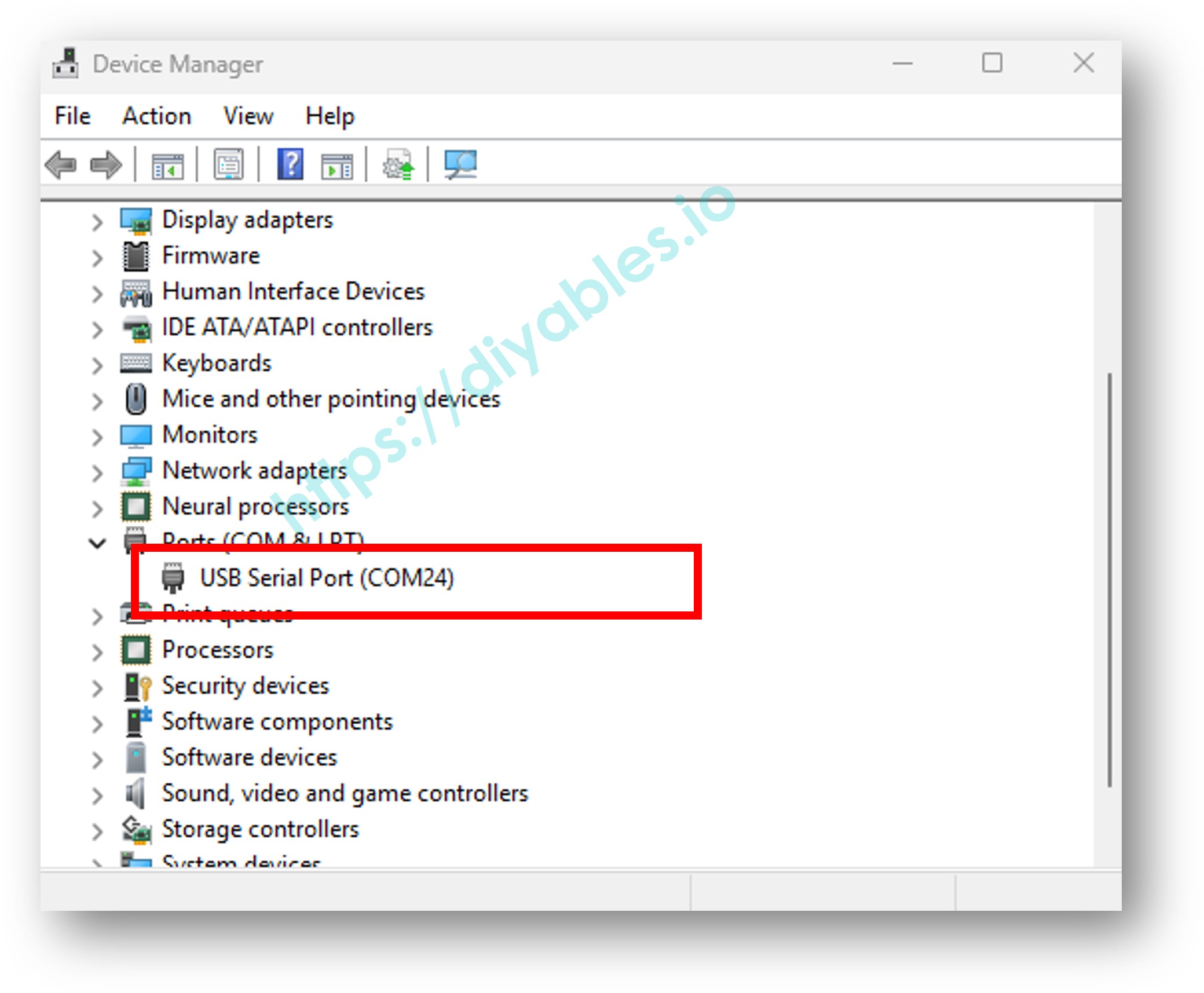
- Locate the device under Ports (COM & LPT), You will see a port usually listed as USB Serial Port or similar as below image.
- Connect the Board
- Connect your board to the computer using a USB cable.
- Watch the Ports (COM & LPT) section in Device Manager to see which new serial port appears when the board is connected. This is your device.
- Update the Driver
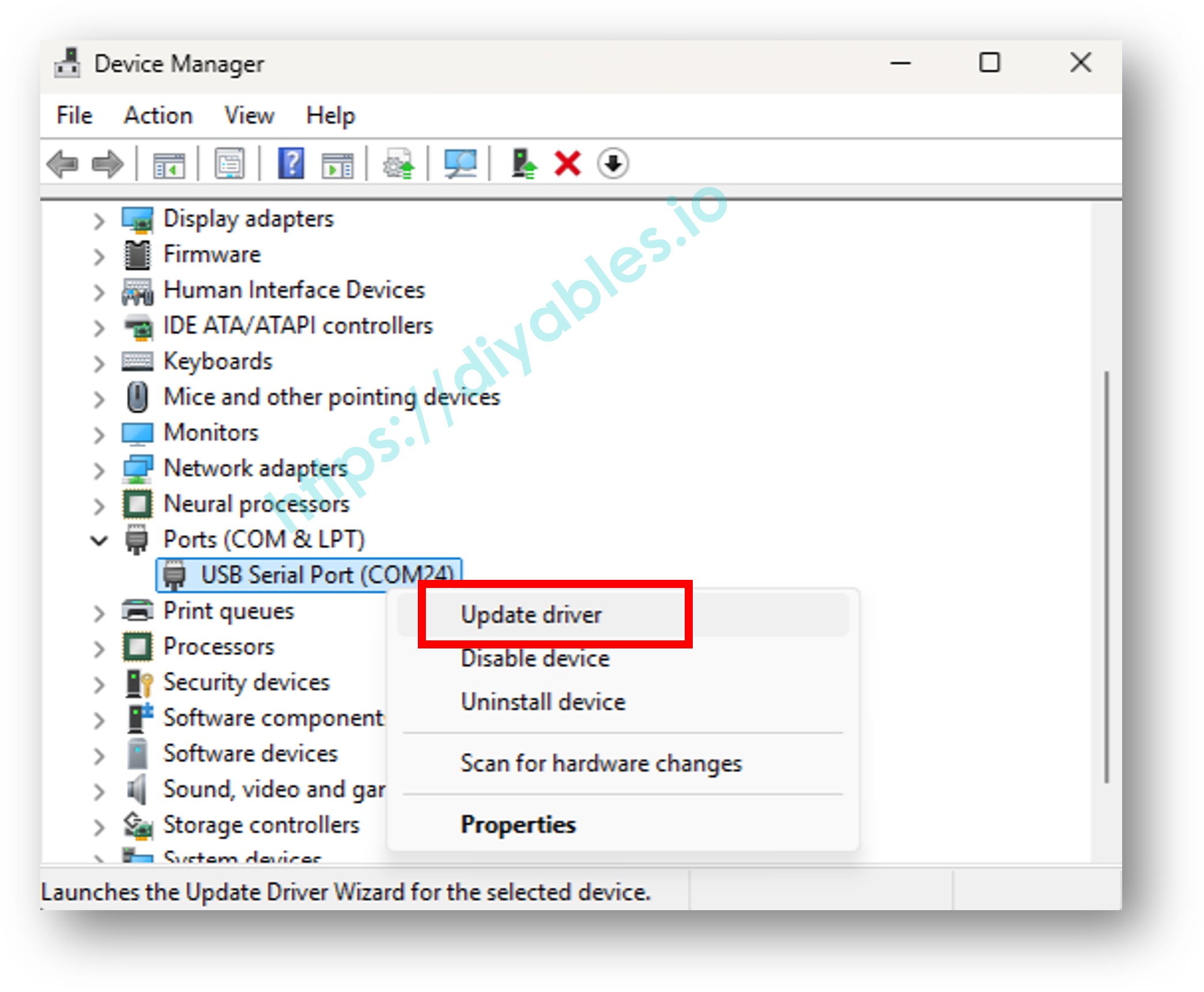
- Right-click on the detected serial device (e.g., "USB Serial Port") and choose Update driver, like the below image:
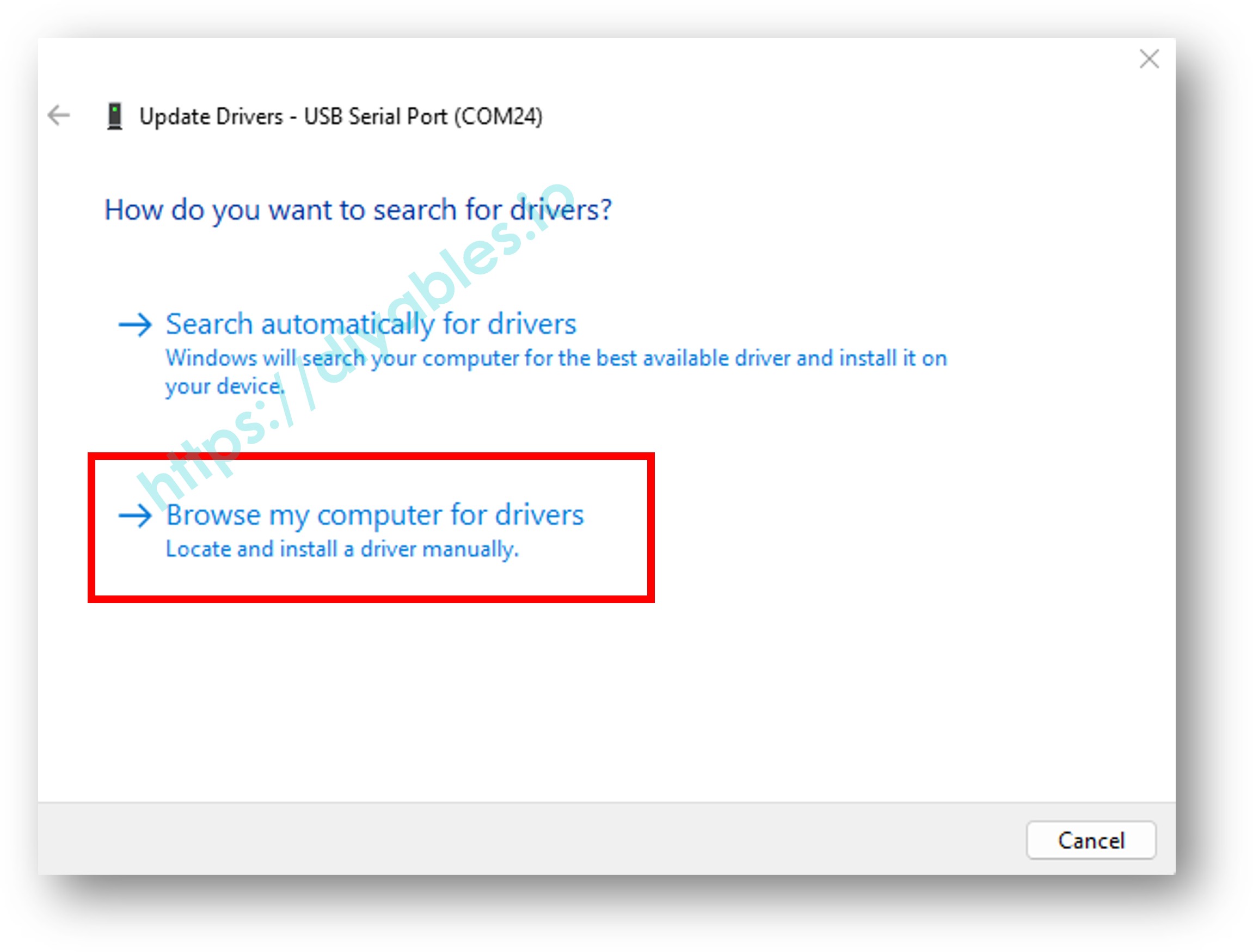
- In the window that appears, select Browse my computer for drivers.
- Select the Unzipped Folder
- Click Browse, then navigate to the folder where you unzipped the driver.
- Click Next and follow the prompts to complete the installation.
- Finish
Once the driver is installed, the device should appear correctly under Ports (COM & LPT) in Device Manager. It looks like below images:
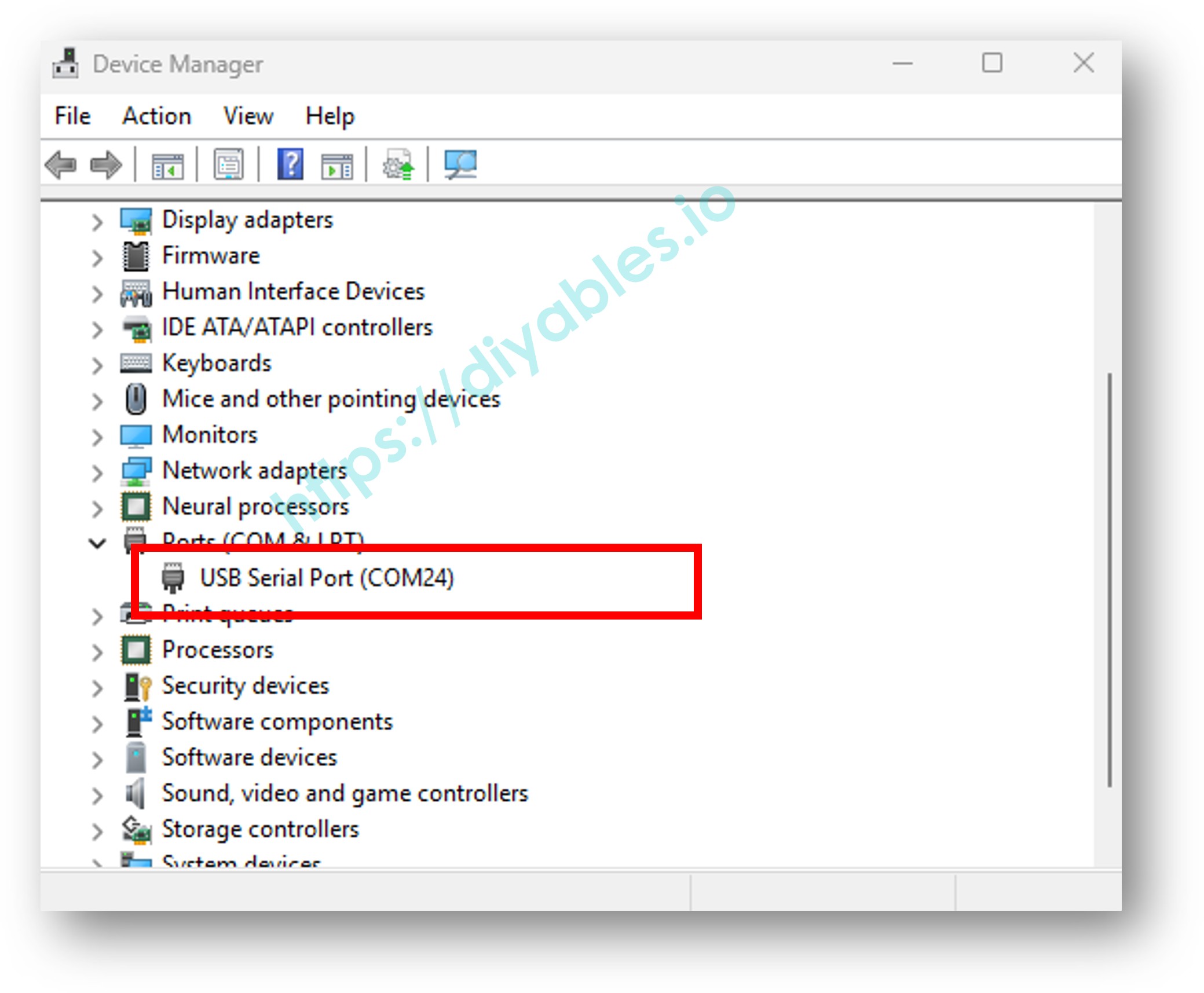
Note that if it does not work, you may need to uninstall the existing driver for that COM port before installing new driver as the instruction above.
TROUBLESHOOTING
Driver Installation Issues
Problem: Driver installation fails on Windows
- Run installer as administrator
- Disable Windows driver signature enforcement temporarily
- Uninstall old FTDI drivers completely first
- Temporarily disable antivirus software
- Download the latest driver from FTDI website
Problem: "System Extension Blocked" on Mac
- Open System Preferences → Security & Privacy
- Click the lock to make changes
- Click "Allow" next to the FTDI extension message
- Restart your Mac
- Reinstall driver if still not working
Problem: Windows Update overwrites FTDI driver
- Disable automatic driver updates for specific device in Device Manager
- Use Device Manager to roll back to previous driver version
- Download and install the latest FTDI driver
Device Not Recognized
Problem: Board not showing up in Device Manager (Windows)
- Try a different USB cable (must support data transfer)
- Try a different USB port
- Check if board power LED is on
- Unplug all USB devices and try again
- Update motherboard chipset drivers
- Check for fake FTDI chips (may require special drivers)
Problem: "Device descriptor request failed" error
- USB port power issue - try powered USB hub
- Cable too long - use shorter cable (under 1 meter)
- USB 3.0 compatibility issue - try USB 2.0 port
- Faulty USB cable or connector
Problem: No /dev/ttyUSB* device on Linux
- Check dmesg: dmesg | tail -30
- Verify module loaded: lsmod | grep ftdi_sio
- Check USB enumeration: lsusb
- Try: sudo modprobe ftdi_sio
Fake FTDI Chip Issues
Problem: Device stops working after Windows Update
- Some counterfeit FT232 chips are bricked by official FTDI drivers
- Solution: Install older FTDI driver version (pre-2014)
- Or use generic USB-to-Serial driver
- Contact seller about counterfeit chip
Communication Issues
Problem: COM port appears but can't communicate
- Check baud rate settings (common: 9600, 115200)
- Verify serial settings (typically 8N1: 8 data bits, No parity, 1 stop bit)
- Ensure no other application is using the COM port
- Try resetting the board
- Check TX/RX connections if using separate adapter
Problem: Random characters or garbage data
- Wrong baud rate setting
- Check cable quality and length
- Electromagnetic interference
- Ensure proper ground connection
- Try lower baud rate
Problem: Upload fails in Arduino IDE
- Select correct COM port (Tools → Port)
- Select correct board type
- Try lowering upload speed
- Press reset button timing (for some boards)
- Check bootloader is present on target board
TECHNICAL SPECIFICATIONS
Supported Chips:
- FT232R, FT232RL, FT232RQ
- FT232BM, FT232BL
- FT232H, FT231X
- And other FT232 series variants
Supported Operating Systems:
- Windows 11, 10, 8.1, 8, 7, Vista, XP (32-bit and 64-bit)
- Windows Server 2022, 2019, 2016, 2012, 2008
- MacOS 10.4 (Tiger) and later (including Sonoma)
- Linux kernel 2.6.x and later
- Android (with OTG support)
- Windows CE, Windows Mobile
Interface:
- USB 2.0 Full Speed (12 Mbps)
- UART interface with full modem control signals
- Hardware or software flow control support
Baud Rates Supported:
- 300 bps to 3 Mbps (FT232R/RL)
- 300 bps to 12 Mbps (FT232H)
- Custom baud rates supported
Data Formats:
- Data bits: 7, 8
- Stop bits: 1, 1.5, 2
- Parity: None, Odd, Even, Mark, Space
Buffer Sizes:
- 128-byte receive buffer
- 256-byte transmit buffer (FT232R)
FREQUENTLY ASKED QUESTIONS
Q: Do I need to install this driver?
A: Windows 10/11 usually includes a compatible driver. Linux has built-in support. Mac users may need to install it. Only install if your device is not recognized.
Q: What's the difference between FT232R and FT232RL?
A: FT232RL is the lead-free (RoHS compliant) version of FT232R. Both function identically and use the same driver.
Q: Is this driver from FTDI official?
A: Yes, always download from FTDI's official website or trusted sources like DIYables to ensure authenticity.
Q: Why does my FT232 device stop working after Windows Update?
A: Microsoft may install different driver versions through Windows Update. You can manually install the FTDI driver and disable automatic updates for that device.
Q: How do I know if my FT232 chip is genuine or counterfeit?
A: Genuine chips work consistently with official drivers. Counterfeits may stop working after driver updates. Check with FTDIChip utility or contact manufacturer.
Q: Can I use FT232 for 5V and 3.3V devices?
A: Yes, most FT232 breakout boards have jumpers or switches to select voltage levels. Check your specific board documentation.
Q: Will this work with Arduino IDE?
A: Yes, the driver creates a COM port that works with Arduino IDE, PlatformIO, and other development tools.
Q: My device shows as "USB Serial Converter" instead of FT232. Is this normal?
A: Yes, different driver versions show different names in Device Manager. As long as it works, the name variation is normal.
ADDITIONAL RESOURCES
Official FTDI Resources:
- Official documentation and technical specifications
Development Tools:
- Arduino IDE: arduino.cc
- PlatformIO: platformio.org
- Terminal Programs: PuTTY, RealTerm, CoolTerm
Utilities:
- FT_Prog: FTDI's EEPROM programming utility
- FTDIChip: Check for genuine FTDI chips
Support:
- For technical support, contact us at support@diyables.io
- Include operating system, board model, and any error messages
- Visit our support page for tutorials and guides